
How to rotate a screen of laptop or PC using keyboard
you may be able to rotate your screen 90°, 180°, or 270° quickly. If you’re running Windows 7, 8, or 10 by pressing three keys.
Simply hold down Control + Alt and then select the arrow key for which way you want your laptop or PC screen to face.
Your monitor will go blank for a short time and return back in a few seconds after facing a different orientation. Press Control + Alt + the up arrow, To restore this back to the original settings. If this does not work, you should use one of the methods below.
Click ‘Display Options’
If the short cut does not work it may be due to the screen resolution lock and you have to unlock the screen resolution settings first. For this purpose, follow the steps as mentioned below:
Step-1
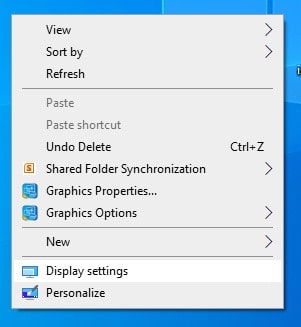
Right click on your desktop screen and select screen Resolution option from the drop-down menu.
Recent Posts
- The Ultimate Guide to Men’s Fashion in Pakistan: Trends, Styles, and Where to Shop
- Professional Video Editing
- How to remove background in photoshop
- How to protect from the negative effects of mobile and internet?
- Isaac Newton
- THE GREATES NAME IN THE COMPUTER HISTORY
- ایپل انتہائی کھیلوں کے لئے ایک ناہموار واچ کا آغاز کرسکتا ہے
- 5 key points for freelance profile
- Mental Intelligence (IQ)
- Most beautiful capitals of the world
- Top Freelance Marketplaces
- How to rotate a screen of a laptop or PC
- What are HTTPS and Redirects
- Redirect a WordPress site from non-WWW to WWW
- Elon Musk has become the world’s second-richest person
Select ‘Orientation’
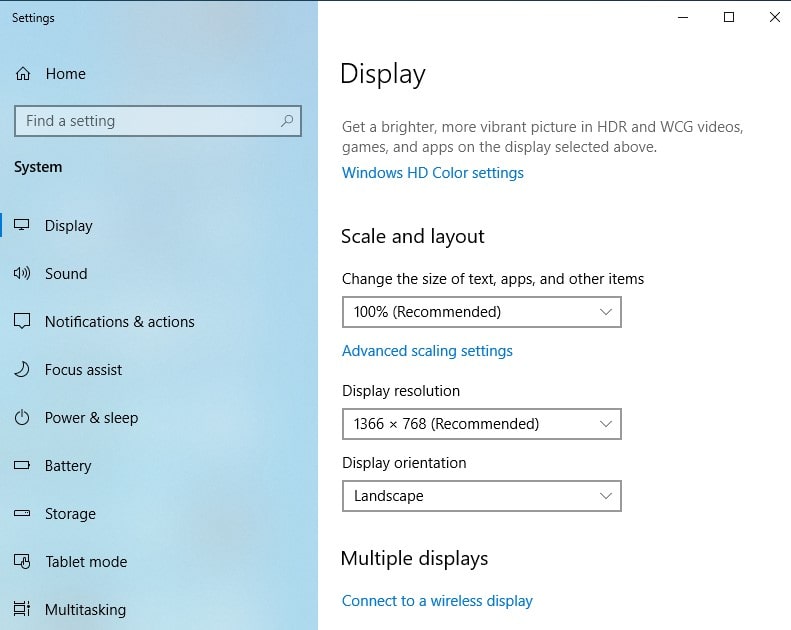
Now go to the screen resolution option and select the orientation you want and hit enter.
There are four options: Landscape -à portrait —> Landscape(flipped)à portrait —>(flipped)
Locking Your Screen
If you don’t want to rotate your screen then You can lock your screen. If you just want to prevent a new end-user from accidentally flipping their screen, simply lock the screen rotation.
Screen Orientation is Stuck
Many users have said that their screen becomes stuck in one orientation. The hotkeys don’t work to fix it and many times the user can’t even input their password to gain access to their PC. If your screen is stuck in one orientation and the above methods are not working for you then let’s review some options.
If screen rotation isn’t working you can go into your system’s Registry by using the Win+R keyboard shortcut. Type the command ‘regedit’ in the box and press enter. From here, follow the path: HKEY_LOCAL_MACHINE/SOFTWARE/Microsoft/Windows/CurrentVersion/AutoRotation.
Double-click Last Orientation and enter ‘0’ in the value box. This will help you to reset your screen orientation. This process is incredibly difficult to follow if your screen is upside down or even sideways.
